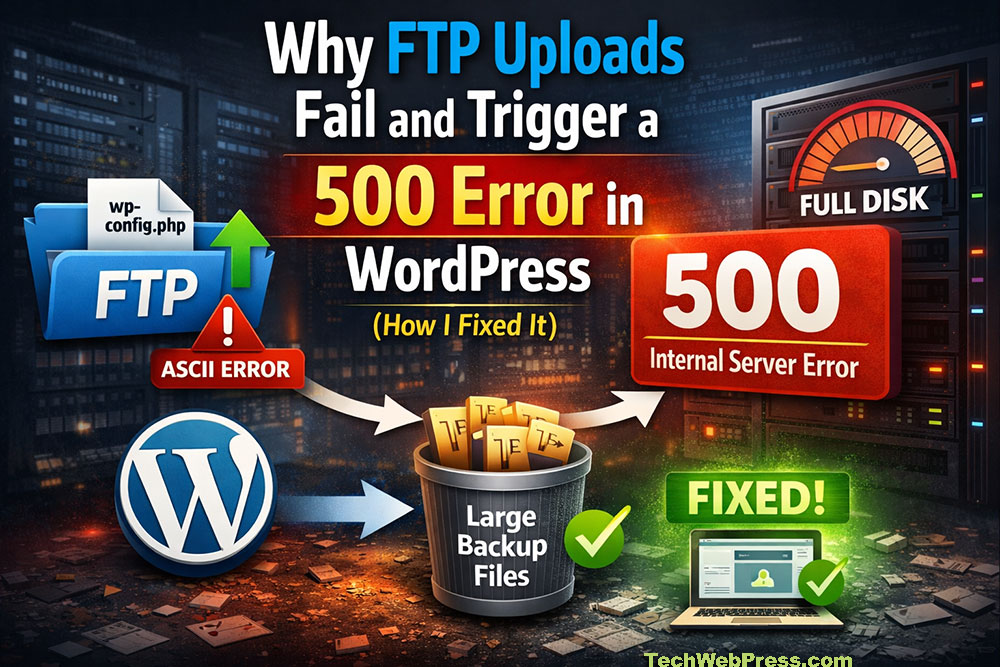
When you work with WordPress long enough, you eventually experience that moment of panic—the moment when a live client website suddenly goes down while you’re editing something as simple as wp-config.php.
Recently, I faced one of those terrifying incidents while working on a client website using WinSCP. What started as a routine edit quickly escalated into a complete site outage, a blank wp-config.php file, and a confusing WordPress installation loop.
At first glance, the symptoms looked unrelated: FTP errors, a WordPress setup screen, and a mysterious 500 Internal Server Error.
But the real culprit was something surprisingly simple and incredibly dangerous: the server disk was 100% full.
In this article, I’ll walk you through the exact symptoms, investigation process, root cause, and the FTP-only recovery method I used to bring the website back online.
The Incident: When a Simple FTP Edit Took Down the Site
I was editing the wp-config.php file on a live WordPress website using WinSCP.
Everything seemed normal until I tried to save the file back to the server. During the upload process, WinSCP suddenly threw an ASCII transfer error.
Immediately afterward, I noticed something alarming:
- The
wp-config.phpfile became completely blank (0 bytes) - I could rename files
- I could create files
- But I could not write or edit any code
Within seconds, the entire website went offline.
And to make things worse:
- I did not have cPanel access
- My only access was FTP
The Symptoms: FTP Errors and a Strange WordPress Setup Loop
Since the wp-config.php file was wiped, visiting the website triggered the WordPress installation screen.
This happens because WordPress assumes no configuration file exists.
So I attempted a workaround.
I manually entered the existing database credentials:
- Database name
- Database user
- Database password
- Table prefix (important)
WordPress accepted the details and displayed the message:
“All right, sparky! You’ve made it through this part of the installation. WordPress can now communicate with your database. If you are ready, time now to…”
This confirmed an important thing:
The database connection was working perfectly.
But the next step failed.
When I clicked Run the Installation, the site crashed and displayed:
“Error code: 500 Internal Server Error
The site could be temporarily unavailable or too busy. Try again in a few moments.”
At this point, the situation looked confusing:
- FTP upload errors
- A blank
wp-config.phpfile - WordPress connecting to the database
- Installation crashing with a 500 error
Clearly, something deeper was wrong.
The Investigation: Why WordPress Could Read but Not Write
The key clue was this behavior:
✔ WordPress successfully connected to the database
❌ WordPress failed when trying to write the config file
This pointed to a filesystem write problem rather than a database issue.
Similarly:
- FTP could delete or rename files
- But editing files failed
That meant the server could perform metadata operations, but could not write new data blocks.
This is often a sign of disk space exhaustion.
And that turned out to be exactly the case.
The Root Cause: The Dangerous “0-Byte File” Scenario
The server’s disk space was at 100% capacity.
This caused a chain reaction of failures.
What Actually Happened During the FTP Upload
When editing a file via FTP, the process usually works like this:
- The server clears the existing file
- The new content is uploaded and written
- The file is saved
But if the disk is full:
- Step 1 succeeds (old file deleted)
- Step 2 fails (no space to write data)
Result?
A 0-byte file.
So my wp-config.php became empty, instantly breaking the website.
Why WordPress Installation Also Failed
When I attempted to regenerate the config via the WordPress installer, WordPress tried to:
create wp-config.php
write database credentials
save the file
But since the disk was completely full, the file write failed.
This caused the 500 Internal Server Error.
Both issues had the same root cause:
The server had zero remaining disk space.
The Solution: Fixing the Website Using Only FTP
Since I had no cPanel access, I had to free up disk space using FTP alone.
Step 1: Investigate Large Directories
In WordPress, the most common disk space hogs are:
/wp-content/uploads/wp-content/cache/wp-content/updraft
I navigated to:
/wp-content/updraftAnd immediately saw the problem.
The directory was filled with massive backup files like:
backup_2026-01-02-xxxxx.zip
backup_2026-01-05-xxxxx.zip
backup_2026-01-10-xxxxx.zip
These were generated by UpdraftPlus backups stored locally on the server.
Some of them were hundreds of megabytes each.
Step 2: Delete Old Backup ZIP Files
Using WinSCP, I deleted several old backup files.
This immediately freed about:
1 GB of disk space
Step 3: Restore wp-config.php
Once space was available, everything started working again.
I simply uploaded my backup wp-config.php file via FTP.
And just like that:
The website instantly came back online.
No further configuration was needed.
Performance Optimization & Prevention
This incident highlights an important WordPress performance and reliability principle.
Never Store Large Backups on the Same Server
Many site owners configure backup plugins to store backups locally.
This is dangerous because:
- Backups accumulate quickly
- Disk space fills silently
- The website eventually crashes
Worst case scenarios include:
- Database write failures
- File upload failures
- WordPress updates breaking
- FTP edits creating 0-byte files
Best Practices for WordPress Backups
Always configure backups to external storage.
Recommended options:
- Google Drive
- Amazon S3
- Dropbox
- DigitalOcean Spaces
- Backblaze B2
These solutions prevent backups from consuming server disk space.
Also Implement Backup Retention Limits
For example:
- Keep 3–5 recent backups
- Automatically delete older ones
Most plugins (including UpdraftPlus) support this setting.
Monitor Server Disk Usage
Developers should periodically check:
Disk usage
Log file growth
Backup directories
Cache folders
Even a small VPS can crash when storage hits 100% capacity.
Key Takeaways
This real-world incident revealed several critical lessons:
- A full disk can silently break WordPress
- FTP edits can produce 0-byte files
- WordPress may still connect to the database
- But writing files becomes impossible
- Backup plugins storing files locally can destroy server stability
The next time you see:
- FTP upload errors
- A blank
wp-config.php - WordPress setup loops
- Or unexplained 500 errors
Always check server disk space first.
Sometimes the solution isn’t a complicated debugging session.
Sometimes you just need to delete a few giant backup files.
And suddenly, everything works again..